
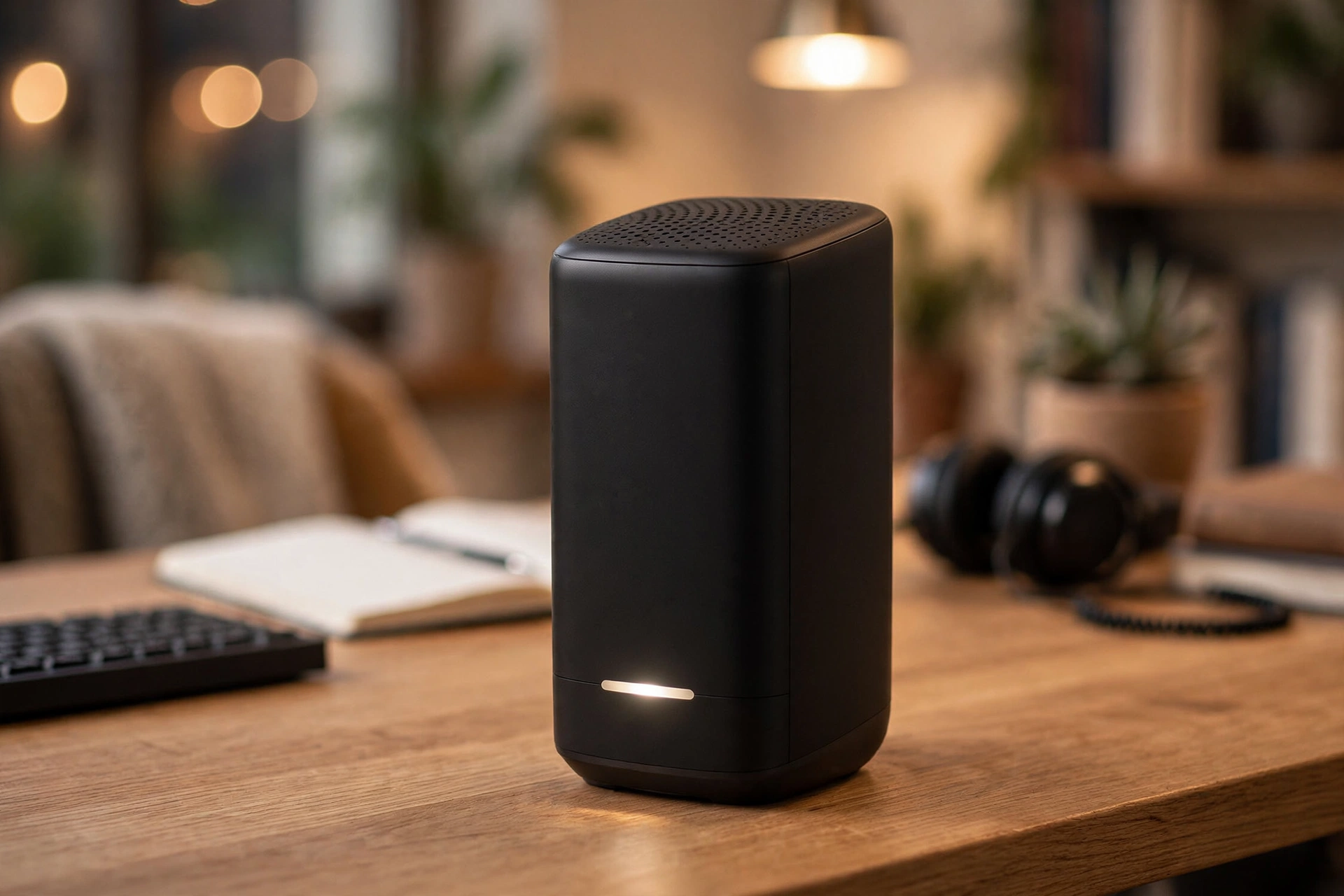
Xfinity modem blinking white light: What it means and how to fix it
If your Xfinity modem is blinking white, it’s trying to tell you something simple: it’s not fully activated yet. Nine times out of ten, that’s the whole story — especially if you just plugged in a new gateway or got a replacement in the mail.
But there’s a smaller chance it means something else, like a firmware update running in the background or a connection problem after an outage. This guide covers the Xfinity modem white light meaning and how to fix an Xfinity modem blinking white light, in the order you should actually check things.
What the blinking white light means
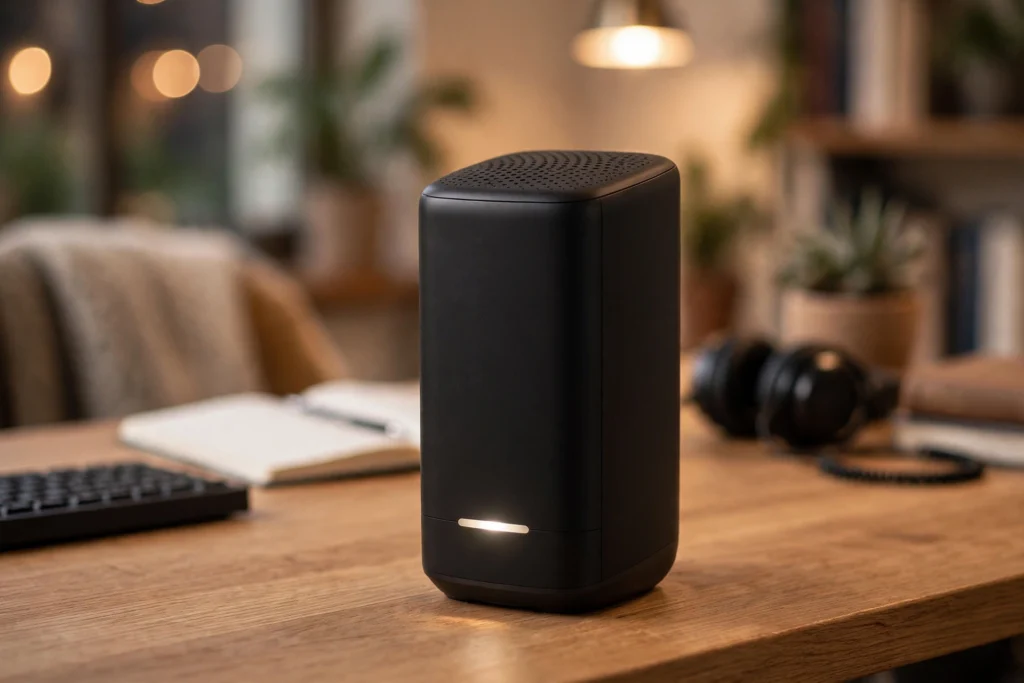
On current Xfinity gateways (the XB7 and XB8 — the tall black towers), a blinking white light means the gateway is powered on and trying to connect, but the handshake isn’t complete. Whether you call it an Xfinity router blinking white or an Xfinity gateway blinking white light, the meaning is the same.
Here’s the quick reference for all the light patterns, so you can rule out the others:
| Light pattern | What it means |
|---|---|
| Blinking white | Not fully activated — finish setup in the Xfinity app |
| Solid white | Online and working normally |
| Blinking white (after successful setup) | Firmware update or reconnecting — give it 15 minutes |
| Steady red | No internet connection at all |
| Blinking blue | WPS pairing mode (you pressed the WPS button) |
| Amber and green alternating | Firmware downloading — don’t unplug, wait up to 15 minutes |
| No lights | No power — check the power cable and outlet |
If yours is blinking white, start with activation. That’s the fix for the vast majority of cases. (If you have an older XB7 specifically and the Xfinity XB7 blinking white won’t stop even after activation, skip to Step 4 — the power cycle fixes most stuck XB7s.)
Step 1: Finish activation in the Xfinity app
This is the step most people skip, because the gateway looks like it should “just work” once it’s plugged in. It doesn’t. If you’re wondering how to fix Xfinity modem blinking white, start here — Xfinity requires every gateway, new or replacement, to go through activation in the app before it goes online.
Here’s how:
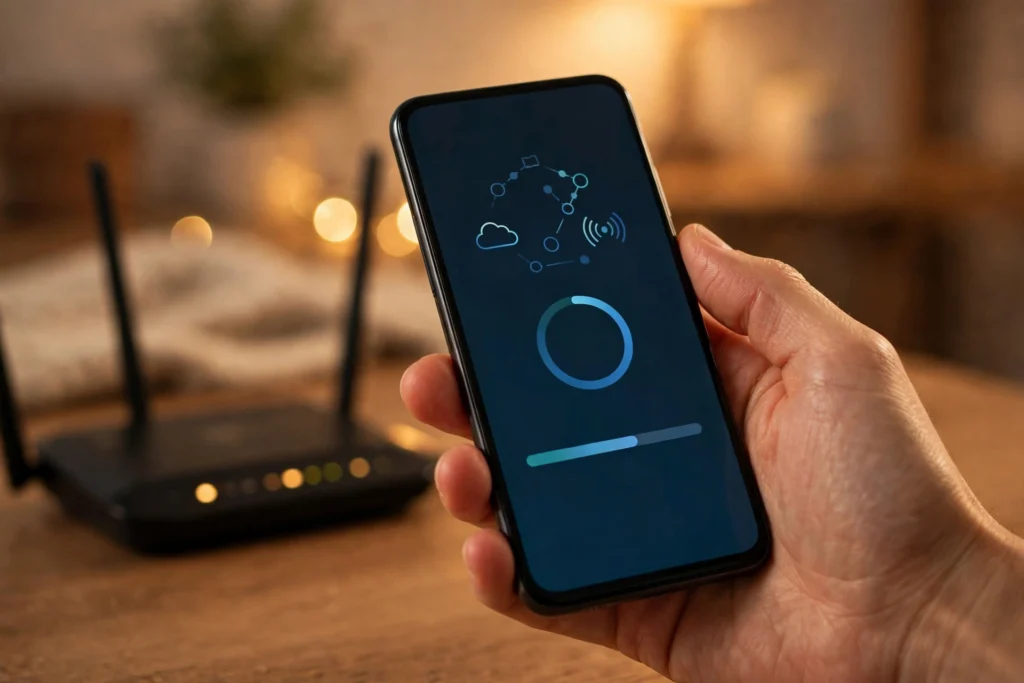
- Download the Xfinity app on your phone (not the Xfinity My Account app — the plain “Xfinity” app).
- Sign in with your Xfinity ID. If you just started service, use the credentials from your signup email.
- The app should detect the new gateway automatically. If it doesn’t, tap the option to add a device and scan the QR code on the bottom or side of the gateway.
- Can’t scan it? You can type in the 12-digit CM MAC number printed on the same label instead.
- Follow the app’s guided setup — it’ll walk you through placement, cable checks, and WiFi name setup.
Activation can take up to 20 minutes. The light will blink white the entire time, and that’s normal. Don’t unplug it, don’t press reset, don’t close the app. Just let it finish. When the light goes solid white, you’re online.
If the app says activation failed: don’t panic. This happens a lot, and it’s usually one of three things — the coax cable isn’t fully connected (see Step 3), there’s an outage in your area (see Step 2), or Xfinity’s system hasn’t provisioned your account yet. If you’ve checked the cable and there’s no outage, call 1-800-XFINITY and say “my gateway activation failed in the app.” They can push it through from their end in a few minutes.
Step 2: Check for an Xfinity outage
Before you touch a single cable, rule out an outage. If Xfinity’s network is down in your area, no amount of rebooting will fix the blinking light — and you’ll waste 30 minutes troubleshooting something that isn’t broken on your end.
Open the Xfinity app and look for the Status Center, or check your account online. It’ll show any reported outages or maintenance in your area with an estimated fix time.
You can also just ask a neighbor on Xfinity if their internet is down. It’s low-tech, but it’s fast and definitive.
If there IS an outage, stop here. Wait it out. The gateway will activate on its own once service is restored — you don’t need to do anything.
Step 3: Check your coax cable
If activation keeps failing or stalling, the coax cable is the most common physical culprit. The gateway
needs a clean signal from the wall, and coax connections are surprisingly finicky.
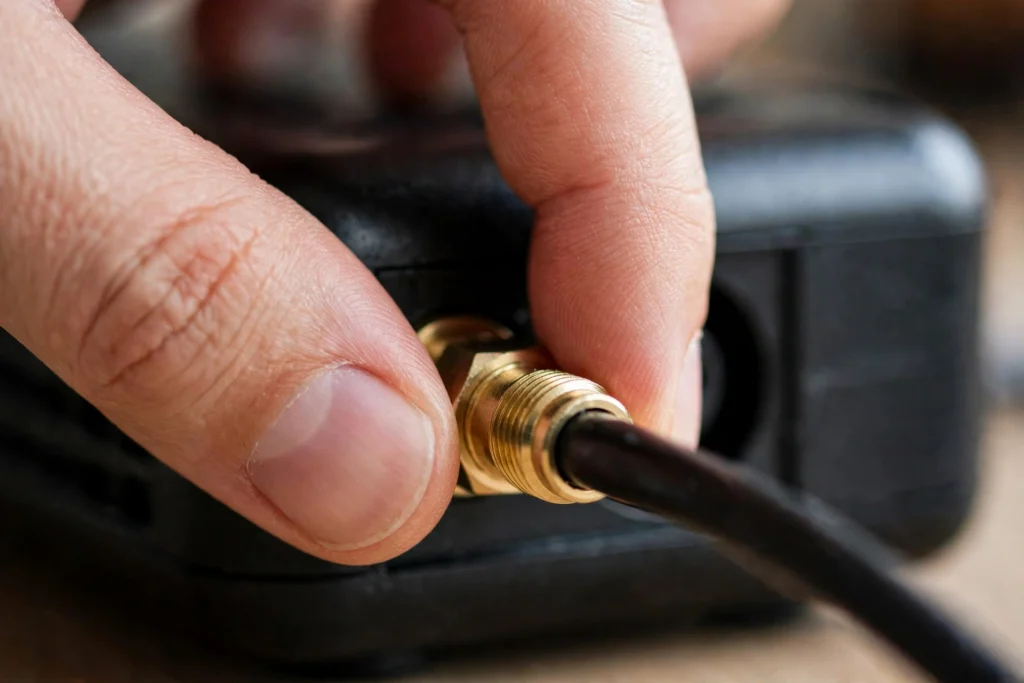
- Find where the coax cable screws into the back of the gateway. Unscrew it completely, then screw it back on finger-tight. Not wrench-tight — just snug with your fingers. Over-tightening can damage the connector.
- Follow the cable to the wall outlet and do the same there.
- If there’s a splitter in the line (a small metal box splitting one cable into two or more), try bypassing it temporarily — run the coax straight from the wall to the gateway. Splitters go bad more often than people expect, and a failing splitter is a classic cause of activation failures.
- Look at the cable itself. If it’s visibly kinked, crushed, or the connector looks corroded, replace it. A $10 coax cable from any electronics store is fine.
After reseating the coax, give the gateway a few minutes. If the signal was the problem, activation should pick up where it left off.
Step 4: Power cycle the right way
“Turn it off and on again” works, but most people do it wrong — they unplug for 10 seconds and plug back in, which isn’t long enough for the gateway to fully clear its state.
Do it like this:
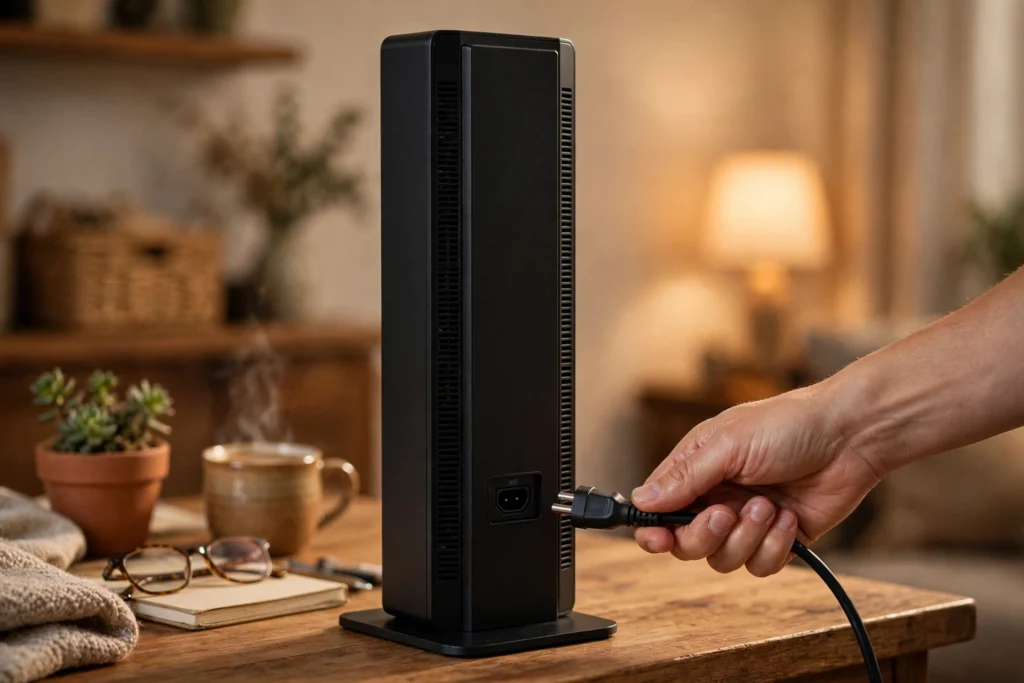
- Unplug the power cable from the back of the gateway (not just from the wall — unplug it from the device).
- Wait a full 60 seconds. This matters. The gateway has capacitors that hold a charge, and 10 seconds isn’t enough to drain them.
- Plug the power back in.
- Wait up to 10 minutes. The gateway goes through its full boot sequence — you’ll see the light change colors as it progresses. Don’t touch it during this time.
If the light was blinking white because of a temporary glitch or a stuck boot process, this usually clears it.
It was working fine, then started blinking white
This is a different scenario from a new setup, and it confuses people. Your gateway was online yesterday, and now it’s blinking white. What changed?
Usually one of these:
- A power outage or surge knocked the gateway offline, and it’s struggling to re-register with Xfinity’s network. The 60-second power cycle above is the fix.
- A firmware update started in the background. If the light is blinking white (not amber/green alternating), give it 15 minutes before you touch anything. Interrupting a firmware update can brick the gateway.
- An area outage or maintenance — check the Status Center first.
- Your account has an issue — an overdue bill or a service change can suspend the connection. Log into your Xfinity account and check for any alerts or past-due notices. This one surprises people, but it’s real: a blinking white light can mean the account side isn’t provisioned.
Work through them in that order — power cycle, wait for firmware, check outage, check account.
Step 5: Factory reset (last resort)
If nothing above worked, a factory reset wipes the gateway back to out-of-the-box state. You’ll have to redo activation and set up your WiFi name and password again, so treat this as the last step before
calling support.
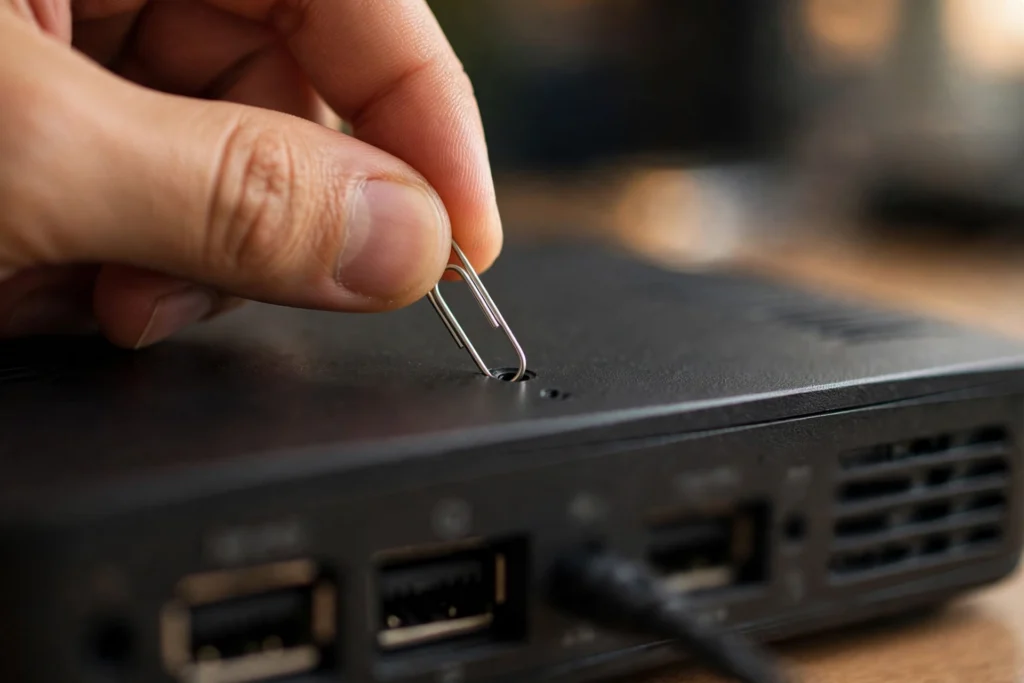
- Find the reset button on the back of the gateway — it’s recessed, so you’ll need a paperclip or pin.
- With the gateway powered on, press and hold the reset button for 15 seconds.
- Release it. The gateway will reboot, which takes several minutes.
- Once it’s back up (blinking white, most likely), go through activation in the Xfinity app from scratch.
When to call Xfinity
Call 1-800-XFINITY (1-800-934-6489) if:
- Activation fails in the app more than twice
- The light has been blinking white for over an hour with no change
- You’ve tried everything above and the gateway won’t go solid white
- You suspect the gateway itself is dead (no lights at all, or it gets very hot)
What to tell them (so you don’t repeat steps for 20 minutes): “My [XB7/XB8] gateway is blinking white. I’ve already completed the in-app activation twice, checked for outages, reseated the coax, and power cycled for 60 seconds. Can you check if my account is provisioned and push activation from your end?”
That sentence saves you from the entire script. Support can see things you can’t — like whether your modem’s MAC address is registered on their system, which is the most common backend cause of a stuck activation.
If the gateway turns out to be faulty and you’re renting it, Xfinity will ship a replacement for free. If you own your modem, a persistent blinking white light after all these steps usually means it’s time for a new one — check Xfinity’s approved modem list before buying. You can also browse Xfinity’s official support pages for model-specific help.
For more step-by-step Xfinity troubleshooting guides, browse our Xfinity fixes
FAQ
What does a blinking white light on my Xfinity modem mean?
It means the gateway is powered on but not fully activated. On XB7 and XB8 gateways, this is the normal state during setup — finish activation in the Xfinity app and the light will go solid white.
How long does Xfinity activation take?
Usually 10-20 minutes. The light blinks white the whole time. If it’s been over an hour with no progress, something is stuck — check your coax cable and try the activation again.
Why is my Xfinity gateway blinking white after a power outage?
The outage knocked it offline and it’s having trouble re-registering with Xfinity’s network. Unplug it for a full 60 seconds, plug it back in, and give it 10 minutes. If your area is still experiencing an outage, wait for that to clear first.
Should I unplug my Xfinity modem while it’s blinking white?
Only to power cycle it (unplug 60 seconds, plug back in). Don’t unplug it repeatedly or during what might be a firmware update — if the light pattern changes to amber/green alternating, leave it alone for 15 minutes.
What’s the difference between blinking white and solid white?
Blinking white means “working on it” — activating, updating, or reconnecting. Solid white means “done” — you’re online. Solid white is the goal.
My Xfinity app says activation failed. What now?
Check the coax connection first (finger-tight at both ends, try bypassing any splitter). Then check for an area outage. If both are fine, call 1-800-XFINITY — they can often complete the activation from their end.
Can a bad coax cable cause the blinking white light?
Yes — it’s one of the most common physical causes. A loose, damaged, or corroded coax connection prevents the gateway from locking onto Xfinity’s signal, which stalls activation. Reseat both ends and inspect the cable.
Does blinking white mean my Xfinity bill is overdue?
It can. If your account is suspended for non-payment, the gateway can’t complete registration and will blink white. Log into your Xfinity account and check for billing alerts before assuming it’s a hardware problem.